Home Screen: Tools > Settings > System Settings > Date & Time > Time Zone
This option opens a menu of time zone settings. Scroll to highlight, then select the local time zone. The display returns to the Settings menu once a time zone is selected.
Clock Settings
Home Screen: Tools > Settings > System Settings > Date & Time > Clock Settings
This option opens a window for resetting the time on the real-time clock.
| 1. | Select Tools from the Home screen to open the menu. |
| 2. | Select Settings from the menu. |
| 3. | Select Clock Settings from the menu. |
A warning message briefly displays followed by the Clock Settings screen.
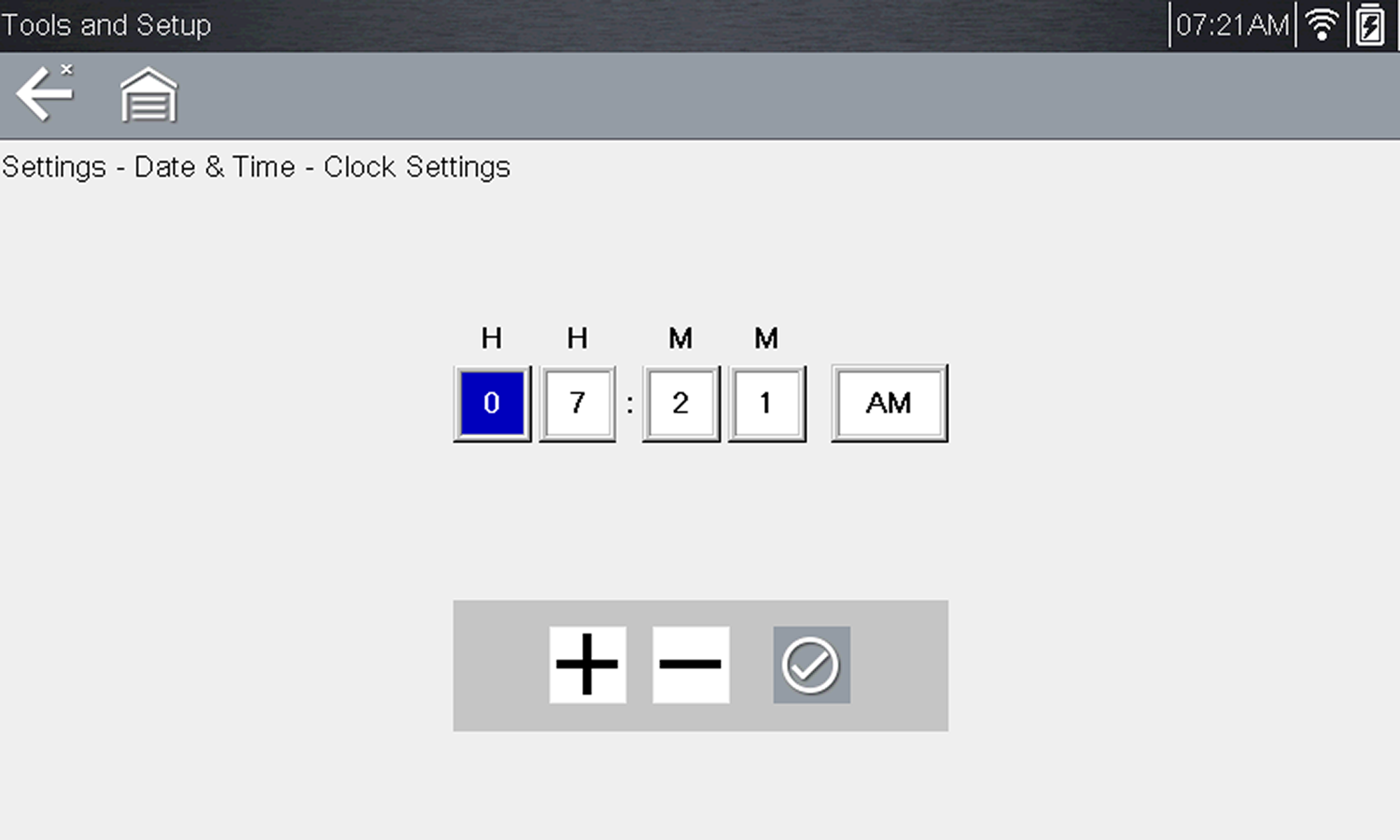
Clock settings
| 4. | Select the up (+) icon on the screen or press the up (b) button to incrementally increase the number in the highlighted field. Select the down (–) icon on the screen or press the down (d) button to incrementally decrease the number. |
| 5. | Select the check (a) icon on the screen or press the Y/a button to move the highlight to the next field. |
| 6. | Repeat Step 4 and Step 5 until the correct time is displayed. |
| 7. | Select the Back icon on the toolbar or press the N/X button to close the Clock Settings window and return to the Settings menu. |
Daylight Savings Time
Home Screen: Tools > Settings > System Settings > Date & Time > Daylight Savings Time
This option opens a menu to configure the internal clock for Daylight Savings Time. Choose from:
| ● | ON—sets the clock for Daylight Savings time. |
| ● | OFF—sets the clock for standard time. |
Make either selection, then select the Back icon or press the N/X button to return to the menu.
Time Format
Home Screen: Tools > Settings > System Settings > Date & Time > 24 Hour Format
This option determines whether time is displayed on a 12 or 24 hour clock. Selecting opens a menu with two choices:
| ● | 24 Hour Format |
| ● | 12 Hour Format |
Make either selection, then select the Back icon or press the N/X button to return to the menu.
Date Format
Home Screen: Tools > Settings > System Settings > Date & Time > Date Format
This option allows you to select how date information is displayed. Select from:
| ● | (MM_DD_YYYY)—Month, Day, Year |
| ● | (DD_MM_YYYY)—Day, Month, Year |
| ● | (YYYY_MM_DD)—Year, Month, Day |
Make a selection, then select the Back icon or press the N/X button to return to the menu.